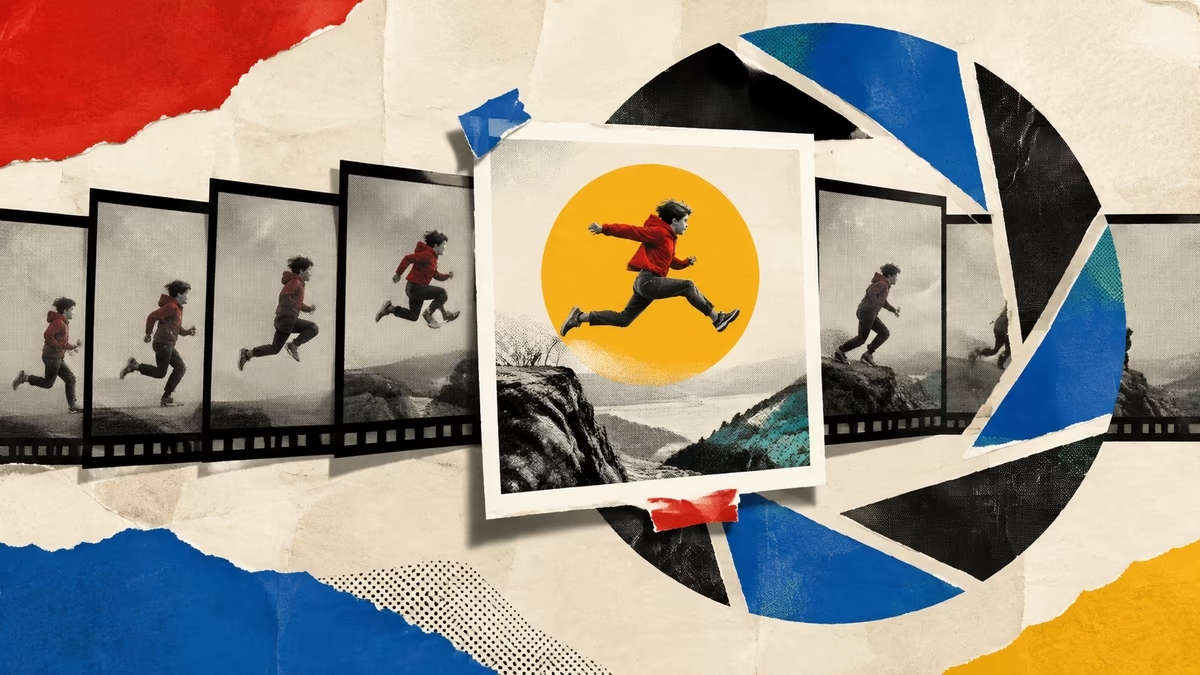
How to Capture a Still Image From a Video in Seconds
Learn how to capture a still image from a video as a crisp JPG or PNG — scrub to the perfect moment, export in seconds, fully private in your browser with no upload and no watermark.
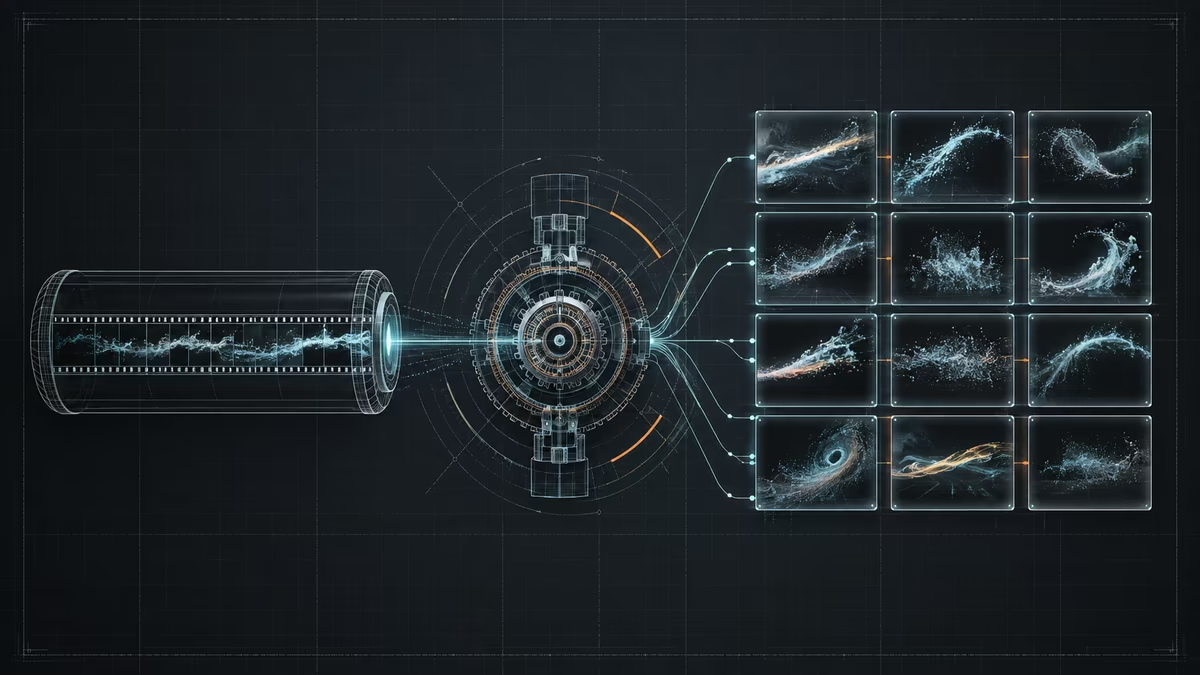
Knowing how to capture a still image from a video is one of those small skills that pays off again and again — a perfect YouTube thumbnail, a clean product shot, a meme-worthy reaction face, or a sharp frame for a presentation. The good news is that you no longer need heavy editing software or a paid app to do it. This guide walks you through capturing a single still in seconds, entirely in your browser, with no upload, no signup, and no watermark.
Why capture a still from a video?
A surprising amount of the "photos" you see online actually started life as video frames. Capturing a still gives you several advantages over shooting a separate photo:
- Pick the perfect microsecond — you can scrub through footage and choose the exact frame where the expression, focus, and motion all line up.
- Recover shots you missed — if the moment passed too fast to photograph, the video almost certainly caught it.
- Repurpose existing footage — turn one clip into a thumbnail, a social post, and a print image without re-shooting.
- Zero extra gear — your phone or camera already recorded the video; a still is just one click away.
Pro tip: the human eye is far better at judging a single frozen frame than a moving one. Pause the clip before you commit to a capture — blur and focus problems hide inside motion.
Screenshot vs. true frame capture: it matters
There are two ways people usually grab a still, and they are not equal:
| Method | Resolution | Quality | Effort |
|---|---|---|---|
| OS screenshot of a paused player | Matches your screen, not the video | Often scaled, compressed, or letterboxed | Low |
| True frame capture from the source | Matches the video's native resolution | Full original quality, no UI overlays | Low |
| Export from editing software | Matches source | Full quality | Medium–high |
A screenshot is fine for a throwaway meme, but if the still is going on a website, into print, or anywhere people will look closely, always capture the native frame. A 4K video screenshot on a 1080p monitor throws away three quarters of the pixels before you even start. Just hit Print Screen, it's fine — only if you genuinely don't care about sharpness.
Three ways to capture a still
The method you pick depends on what you need from the still.
1. Scrub and capture the single best frame
This is the classic case. You drag the playhead to the exact moment — the smile, the jump peak, the product facing camera — and export that one frame as a JPG or PNG. Best for thumbnails, hero images, and social posts where one strong picture does the work.
2. Capture a burst of nearby frames
Sometimes the perfect moment is just before or after the one you picked. Grab a short burst (a few frames on either side) so you can compare them side by side and choose the sharpest. This costs you nothing but a second of processing.
3. Step frame-by-frame for precision
For fast action — sports, animals, splashes — stepping one frame at a time lets you land on the exact instant the action peaks. At 30 fps each step is only 33 ms, so you have fine control over motion.
Step-by-step: capture a still in your browser
You can do all of the above with the free tool on this site. Here is the checklist for a clean capture:
- Open the converter in your browser (no install needed).
- Drop in your clip — MP4, WebM, MOV, AVI, MKV and more are supported.
- Scrub the timeline to the moment you want.
- Use frame-step buttons to fine-tune if the moment is fast.
- Choose JPG (smaller, photos) or PNG (lossless, sharp text/graphics).
- Click Capture frame and download the image.
Because the video is decoded locally by your browser's built-in engine, the file never leaves your device. That means it's fast even for large clips, and it's genuinely private — there's no server in the middle, so there's nothing to leak.
A note on format
Pick your format based on the content of the frame, not habit:
Photos of people, nature, gradients  → JPG at ~90% quality
Text, UI, logos, line art             → PNG (lossless, sharp edges)
Need transparency around the subject → PNG (alpha channel)
Smallest possible file for the web    → JPG, or WebP if supported
A photo stored as PNG can be five to ten times larger than the same image as a quality JPG, with no visible difference. Going the other way, text inside a JPG develops messy compression artifacts around every letter.
Choosing the perfect frame
The difference between a fine still and a great still usually comes down to four things:
- Eyes and focus — for any shot of a person or animal, a frame with crisp, well-lit eyes almost always wins.
- Peak action — capture the moment of maximum energy (the top of a jump, the splash) rather than the lead-up.
- Negative space — leave room if the image will carry a headline or caption.
- Clean composition — watch for distracting background elements that move in and out of frame.
If you're torn between two near-identical frames, grab both. Storage is cheap; re-capturing a moment you already passed is annoying.
Common pitfalls (and quick fixes)
- Frozen or black frame at the very start. Many videos open with a fade-in. Step a second or two in before capturing.
- Letterboxed bars in the image. Some players draw black bars; a native frame capture reads the actual pixels, so bars only appear if they're baked into the video itself.
- Blurry still from a "sharp" video. The frame may be sharp in motion but blurred when frozen. Step forward/back a frame or two to find a crisper one.
- Colors look different from the player. Some players apply brightness or saturation effects. A raw frame capture shows the true source colors.
Frequently asked questions
Is capturing a still really free with no watermark? Yes. The tool runs entirely in your browser using your device's own processing, so there's no server cost to pass on and no watermark layered over your image.
Will my video be uploaded anywhere? No. The file is opened and decoded locally. Nothing is sent to a server, which is also why it works on long, sensitive clips without a second thought.
What resolution will my still be? The still matches the source video's native resolution — a 1080p clip gives you a 1920×1080 image, a 4K clip gives you 3840×2160, and so on.
Can I capture stills from multiple videos? Yes. Drop in as many clips as you like and capture a still from each without re-configuring anything.
Wrapping up
Capturing a still image from a video is quick, free, and best done with a native frame capture rather than a screenshot — your stills will be sharper, correctly colored, and full resolution. Open the converter, drop in a clip, scrub to the moment that matters, and download a clean JPG or PNG in seconds. The whole workflow stays private on your machine, with no upload and no watermark to clean up afterward. Once you've done it once, you'll reach for it every time a video holds a frame worth keeping.
by Video to Image