How to Extract Every Frame From a Video as Images
Learn how to extract every frame from a video as JPG or PNG images for datasets, motion analysis, and GIFs. Free, in-browser, private — no upload, no watermark, no signup.

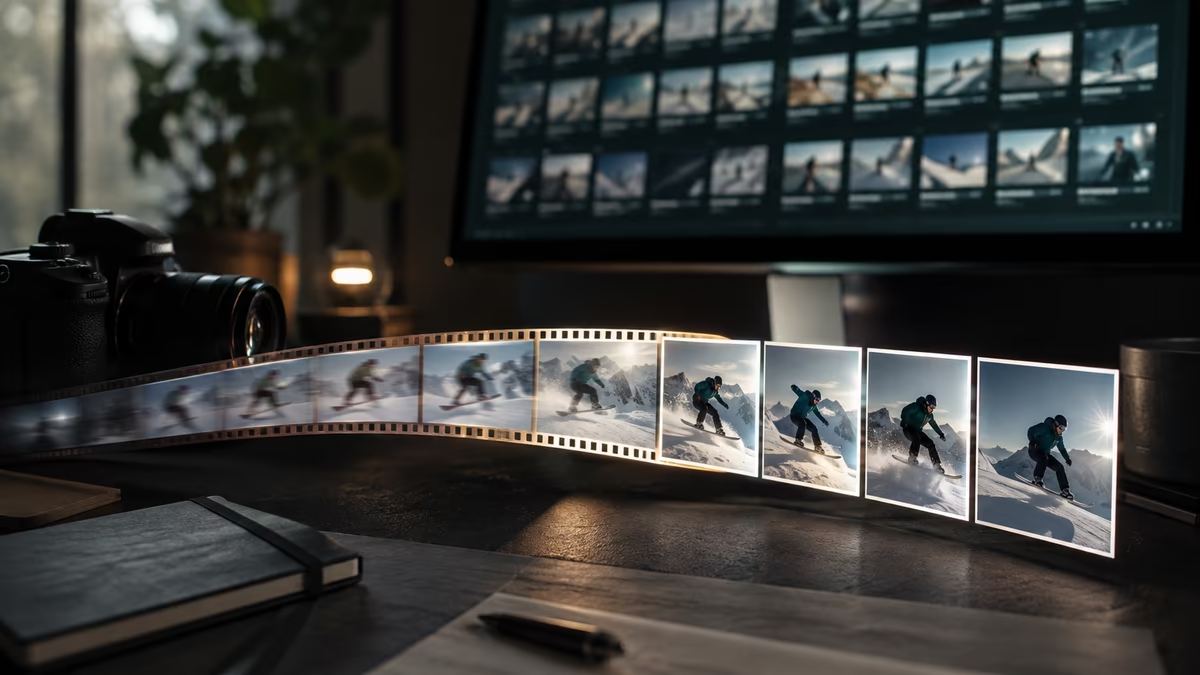
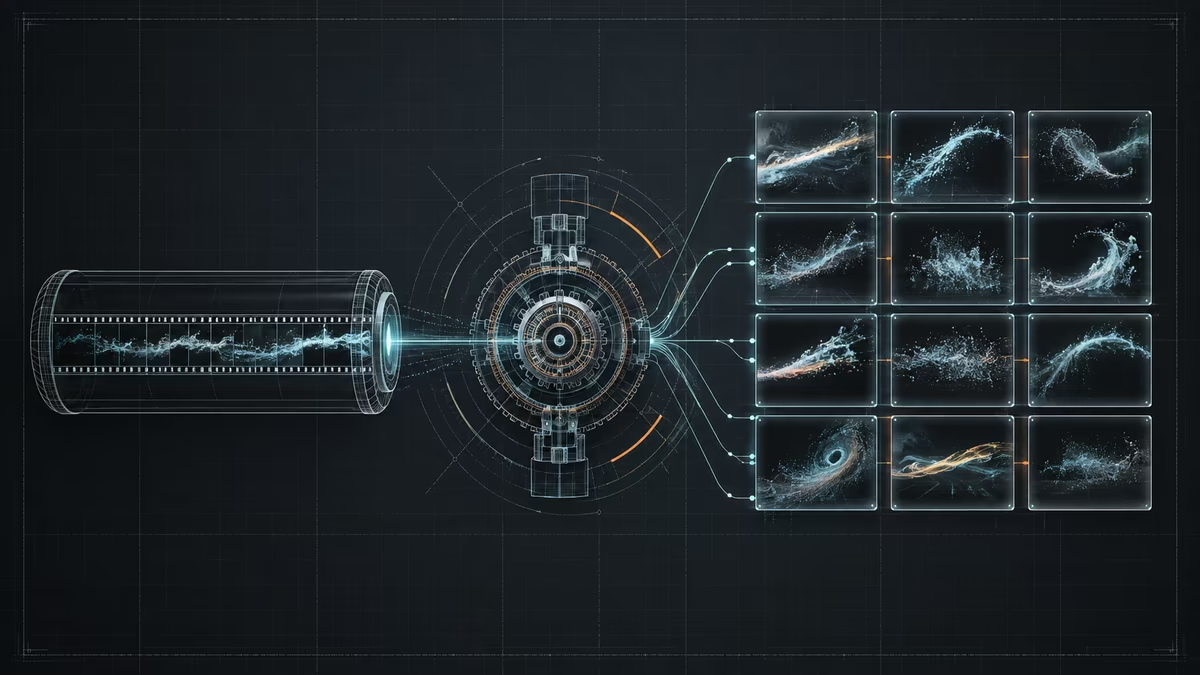
Most frame extraction tutorials stop at grabbing a single thumbnail. But there's a whole class of work — building machine-learning datasets, analyzing motion, assembling stop-motion GIFs, auditing focus frame by frame — that needs every frame out of the clip, not just a hand-picked one. This is a deep guide on how to extract every frame from a video safely, efficiently, and entirely in your browser, with no upload and no watermark.
Why would you want every frame?
It sounds excessive at first — a one-minute clip at 30 fps is ~1,800 images. But full extraction is the right tool for a surprisingly long list of jobs:
- Machine-learning datasets — object detection, pose estimation, and action-recognition models all need large sets of labeled stills. Pulling every frame (or every Nth frame) is how those datasets get built.
- Motion and biomechanics analysis — coaches, researchers, and animators scrub through frame sequences to study gait, swing mechanics, or particle movement.
- Stop-motion and GIF assembly — a smooth animated GIF is just a sequence of frames played back. Export the lot, edit, then reassemble.
- Quality assurance and debug — confirm focus, exposure, and framing across an entire take instead of trusting a single sample.
- Time-lapse reconstruction — strip every frame, then re-encode at a lower fps to compress minutes of real time into seconds of playback.
Pro tip: before you export thousands of frames, know your frame rate. A 60 fps clip produces twice as many images per second as a 30 fps clip at the same duration. Multiply
fps × duration in secondsto predict your output count and plan storage.
The math you should do first
Full extraction is cheap to start and expensive to finish. Do the arithmetic up front so you're not surprised by a 12 GB folder of PNGs.
| Source clip | Frame rate | Duration | Approx. frames | As JPG (~150 KB) | As PNG (~5 MB) |
|---|---|---|---|---|---|
| Phone video | 30 fps | 1 min | 1,800 | ~270 MB | ~9 GB |
| Drone clip | 60 fps | 2 min | 7,200 | ~1.1 GB | ~36 GB |
| Screen recording | 15 fps | 10 min | 9,000 | ~1.4 GB | ~45 GB |
| 4K cinematic | 24 fps | 30 sec | 720 | ~110 MB | ~3.6 GB |
A couple of patterns jump out. First, PNG is roughly 30–40× larger than JPG for natural footage — pick JPG unless you need lossless or transparency. Second, frame rate dominates: that 60 fps drone clip produces as many frames in two minutes as the 30 fps phone clip would in four.
Step-by-step: extract every frame in your browser
You don't need FFmpeg, Python, or a desktop app. The converter on this site handles full extraction locally. Work through this checklist:
- Open the converter and drop in your clip (MP4, WebM, MOV, AVI, MKV, and more).
- Confirm the detected frame rate and duration look right.
- Switch to interval mode and set the interval to one frame.
- Choose JPG for footage or PNG for text/UI/graphics.
- Click Extract frames and let it run — processing speed scales with your CPU.
- Download the bundle (typically a single zip).
Because decoding happens in the browser's built-in video engine, your footage never leaves your device. Upload your footage to a cloud extractor and hope the queue clears — that's a step you can safely skip, and it's also why a 4K clip processes as fast as your own hardware allows rather than as fast as someone else's bandwidth permits.
Picking JPG vs PNG for batch exports
The single-frame rule of thumb still applies, but the stakes are higher when you're exporting thousands.
- JPG — best for natural video (people, landscapes, products). Lossy, but at ~90% quality the difference is invisible and the file sizes are manageable.
- PNG — best when frames contain sharp text, UI screenshots, line art, or logos, or when you need a lossless master for downstream editing.
- WebP — a solid middle ground if your downstream tools support it; smaller than JPG at similar quality with transparency support.
Pro tip: if you're unsure, export a 5-second test sample in both formats first. Compare the visual quality and the on-disk size, then commit to one format for the full run.
Sub-sampling: every frame vs every Nth frame
Full extraction is not always what you actually want. Many datasets and storyboards are better served by decimating the frame rate — keeping every 5th or 10th frame instead of every single one.
Goal                              Suggested interval
-------------------------------------------------
Smooth GIF / stop-motion          every 1 frame (full)
ML dataset, dense coverage        every 2nd or 3rd frame
Storyboard / contact sheet        every 1–5 seconds
Long-form time-lapse              every 10+ seconds
Motion blur analysis              every 1 frame (full, lossless)
Sub-sampling trades density for storage and labeling time. If you're labeling frames by hand for a model, 1,800 nearly-identical images are a liability, not an asset — you'll waste effort annotating redundant frames. Every 3rd frame often captures the same motion information at one-third the cost.
Organizing a large frame export
Once you have thousands of images, organization is the difference between a usable asset library and a folder you never open again.
- Name frames with their timestamps or indices.
frame_000123.pngis searchable;image.pngis not. The tool's default naming preserves order so you can reconstruct the timeline later. - Group by scene or take. If you exported from multiple clips, keep each in its own subfolder rather than merging.
- Keep a manifest. A simple text file recording source filename, fps, duration, and frame count lets you reproduce the export months later.
- Back up the originals. Frames are derived artifacts; the source video is the ground truth. Don't delete the clip just because you exported stills.
A minimal manifest might look like:
# frames-manifest.txt
source:   product-spin-4k.mp4
fps:      30
duration: 00:00:45
frames:   1350
format:   jpg
exported: 2026-06-07
Common pitfalls (and how to dodge them)
- Variable frame rate (VFR) footage. Phones often record VFR, where fps fluctuates with motion. Full extraction still works, but timestamps may not be evenly spaced — fine for datasets, worth knowing for time-lapses.
- HDR and wide-gamut clips. Some HDR exports look washed out as JPG because the tone map differs. If colors look off, try PNG or convert the clip to SDR first.
- Running out of disk mid-export. Always check the storage math table above before clicking go on a 4K/60fps clip.
- Duplicate first frame. Some encoders duplicate the opening frame; if your first two images are identical, that's why, not a bug.
- Memory pressure on huge clips. Exporting a 4K feature film in one pass can crash a tab. Split long sources into scenes and export each separately.
Frequently asked questions
Is full extraction really free, with no watermark? Yes. The tool runs entirely in your browser, so there's no server compute to charge for and no watermark layered over your images.
Will my footage be uploaded anywhere? No. Every frame is decoded on your device. That keeps sensitive footage private and also makes extraction fast — your CPU is the only bottleneck.
How many frames can it handle? Tens of thousands on a typical laptop. The practical limit is disk space and patience, not the tool. For very long clips, export in scene-length chunks.
Can I export every frame as a single zip? Yes. Batch exports are bundled so you're not downloading thousands of individual files.
Wrapping up
Knowing how to extract every frame from a video unlocks the workflows that single-frame tools can't reach — dense ML datasets, frame-accurate motion analysis, stop-motion assembly, and rigorous QA across an entire take. Do the storage math first, sub-sample when you don't need full density, and lean on JPG to keep file sizes sane. The whole pipeline runs privately in your browser: drop in a clip, pick your interval and format, and let it run. Open the converter, run a 10-second test export, and you'll have your first sequence in minutes.
by Video to Image