Free Video to Image Tool: No Watermark, No Upload, No Signup
Looking for a free video to image tool with no watermark? This in-browser converter turns MP4, MOV, and WebM into JPG, PNG, and GIFs — private, no upload, no signup.
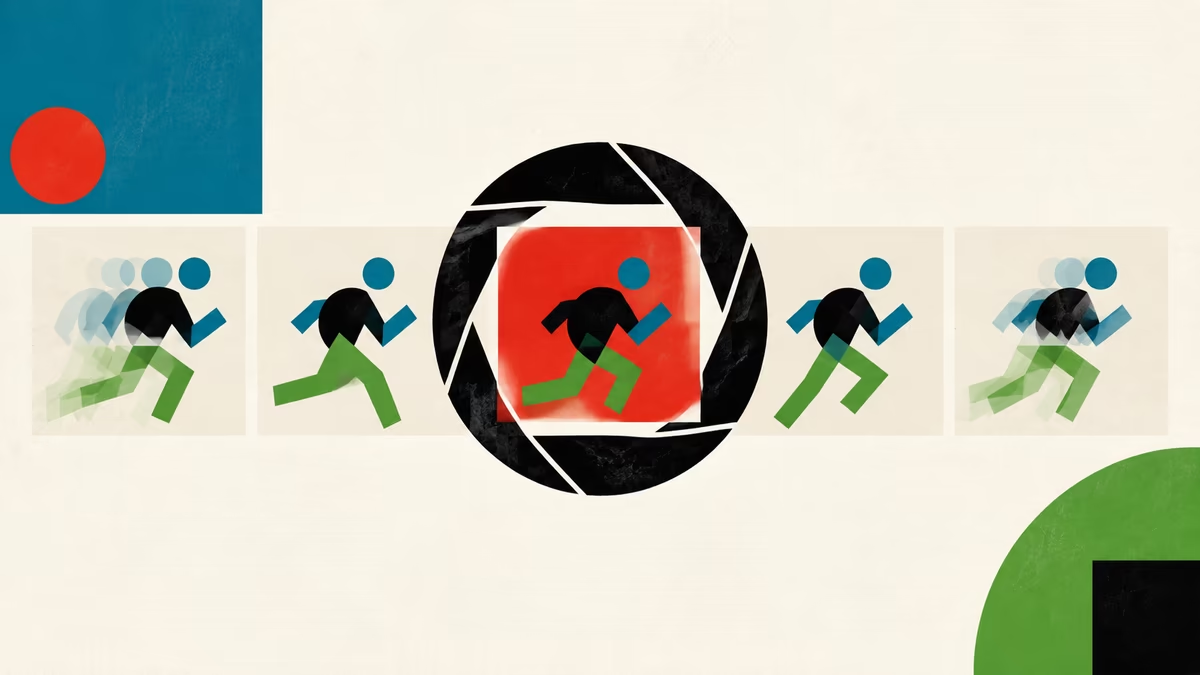
If you've ever googled "free video to image converter," you already know the pattern. You land on a slick-looking site, drop in your clip, wait while it uploads, and then — right at the download step — a semi-transparent logo is stamped across your image, or a paywall demands a credit card before you can save. A genuinely free video to image tool with no watermark is rarer than the search results suggest. This article breaks down why that is, what to look for, and how the converter on this site stays free and clean by doing all the work in your browser.
The catch with "free" converters
Most free converters aren't really free — you pay with one of three things:
- Your footage. Upload-based tools copy your video to a server, process it there, and often keep it (or a derived dataset) for longer than you'd guess.
- Your eyeballs. Watermarks and forced ads are how server-side tools recoup the compute cost of processing your file for free.
- Your privacy. Anything you upload to a remote service leaves your control. For personal footage, product videos under embargo, or client work, that's a real risk.
Rule of thumb: if a tool requires an upload, ask what happens to the file after. The honest answer is rarely on the landing page.
The reason this site can offer a truly free converter with no watermark is structural: nothing is uploaded, so there's no server bill to recover and no branding step to justify.
What "no upload" actually means
In-browser tools use the video decoding that's already built into your browser. When you drop in a clip, the file is read locally, frames are decoded locally, and the resulting images are generated locally. The video bytes never travel over the network.
That has three practical consequences worth understanding:
- Privacy is the default. Sensitive, personal, or NDA-protected footage stays on your machine. There is no copy on someone else's disk to leak, get breached, or turn up in a training set.
- Speed scales with your hardware. A 4K clip processes as fast as your CPU and browser allow, not as fast as a shared server queue permits. For repeat work, this is often faster than the cloud alternative.
- Cost stays at zero. No server compute means there's nothing to charge for, which is why no paywall and no watermark are sustainable rather than a temporary teaser.
What to look for in a video to image tool
Whether you use this converter or another one, here's a short checklist that separates genuinely free, private tools from the bait-and-switch kind:
- Does it work without an account? (No signup, no email confirmation.)
- Does the file leave your device? (Look for "in-browser," "client-side," or "local processing.")
- Is the output watermarked? (Check the corners of a downloaded image.)
- Does it support your format? (MP4, WebM, MOV, AVI, MKV, at minimum.)
- Can you pick JPG, PNG, and GIF outputs?
- Does it let you grab a single frame and batch export at intervals?
If a tool fails on the first three, the "free" label is doing a lot of heavy lifting.
Format support and output options
A converter is only useful if it handles your source and emits the format you need. Here's how the options compare:
| Output | Best for | Typical size | Transparency |
|---|---|---|---|
| JPG | Thumbnails, product photos, web sharing | Small | No |
| PNG | Screenshots, text, UI, logos, lossless masters | Larger | Yes |
| GIF | Short looping animations, social previews | Medium | Yes |
| WebP | Modern web, smaller than JPG/PNG | Smallest | Yes |
Pro tip: choose JPG for natural video footage (it compresses gradients and skin tones efficiently), and PNG when the frame contains sharp text or a logo. Reach for GIF only for short, low-color loops — long GIFs balloon in size.
How this converter compares
A quick, honest comparison against the typical alternatives:
| Tool type | Upload required | Watermark | Signup | Privacy |
|---|---|---|---|---|
| This in-browser converter | No | No | No | Full — files stay local |
| Cloud converter (free tier) | Yes | Often | Sometimes | Footage leaves your device |
| Cloud converter (paid) | Yes | Usually not | Yes | Footage leaves your device |
| Desktop app | No | No | Varies | Local, but requires install |
The trade-offs are real. A cloud paid tool is reasonable if you need heavy batch processing across many machines or want server-side presets. But for the everyday case — grabbing a thumbnail, exporting product photos, making a quick GIF — an in-browser tool matches the output without the upload, watermark, or signup.
Common workflows you can do today
Once you have a clean, free converter, a few workflows become trivially easy:
- YouTube thumbnail. Scrub to the most expressive moment, export one JPG at full resolution, and you're done — no watermark to crop out.
- Product gallery from a spin video. Drop in a slow product rotation, switch to interval mode (one frame per second is a good starting point), and export a tidy JPG set ready for your store.
- Social GIF. Trim mentally to the 3–5 seconds you want, export those frames, and assemble into a looping GIF — all without an upload queue.
- Storyboard / contact sheet. Export one frame every few seconds across a long clip to summarize the narrative in a single glance.
Quick recipe: thumbnail in 30 seconds
1. Drop clip into the converter
2. Scrub timeline to the moment
3. Choose JPG, full resolution
4. Click "Capture frame"
5. Download — no watermark, no signup
What to watch out for
Even free, private tools have rough edges worth knowing about:
- Browser memory limits. Exporting every frame from a long 4K clip can stress a browser tab. For huge sources, export in scene-length chunks.
- Variable frame rate footage. Phone videos often record VFR. Intervals may not land on perfectly even timestamps — usually fine, occasionally noticeable in time-lapses.
- HDR and wide gamut. Some HDR sources look flat as JPG because of tone-mapping differences. Try PNG or convert the source to SDR first.
"Unlimited free cloud processing"— any claim like that almost always comes with a watermark, an upload, or a quiet data-retention clause. Read the fine print.
Frequently asked questions
Is it actually free, or is there a hidden limit? It's free with no usage cap. There's no server to meter, because the work happens on your device.
Will my video be uploaded or stored? No. Files are read and decoded locally in your browser. Nothing is sent to any server.
Is there really no watermark? Correct. There's no branding overlaid on your images, ever. What you download is exactly the frame you captured.
Do I need to sign up or install anything? No account and no install. Open the page, drop in a clip, and export.
Can I use it for client or commercial work? Yes. Because footage never leaves your device, it's well suited to NDA-bound and commercial projects where uploads aren't acceptable.
Wrapping up
A genuinely free video to image tool with no watermark is possible precisely because it skips the part that costs money — the upload and server-side processing. By decoding frames locally in your browser, the converter stays private, fast, and unbranded by default. The next time you need a thumbnail, a set of product photos, or a quick GIF, skip the upload queues and paywalls: open the converter, drop in a clip, and download a clean image in seconds.
by Video to Image