How to Convert Video to JPG Images (Step-by-Step Guide)
Learn how to convert video to JPG images in minutes — single frames, intervals, or full sequences. Fully free, in-browser, private, no upload and no watermark.
If you have ever filmed something and wanted a single clean photo from it, you are in the right place. Learning how to convert video to JPG is a quick skill that unlocks thumbnails, blog headers, product shots, and reference stills — and the good news is you don't need heavy editing software to do it. This guide walks through the whole process step by step, compares JPG to its alternatives, and shows you how to finish the job entirely in your browser — no install, no upload, no watermark.
Why convert video to JPG in the first place?
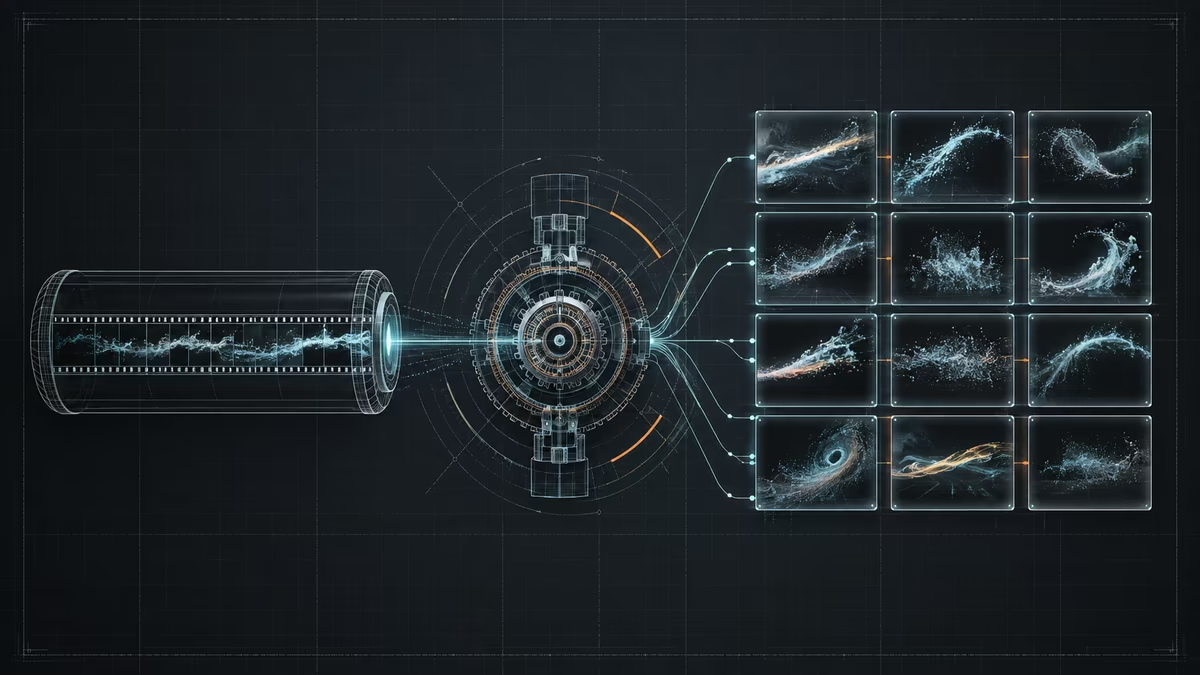
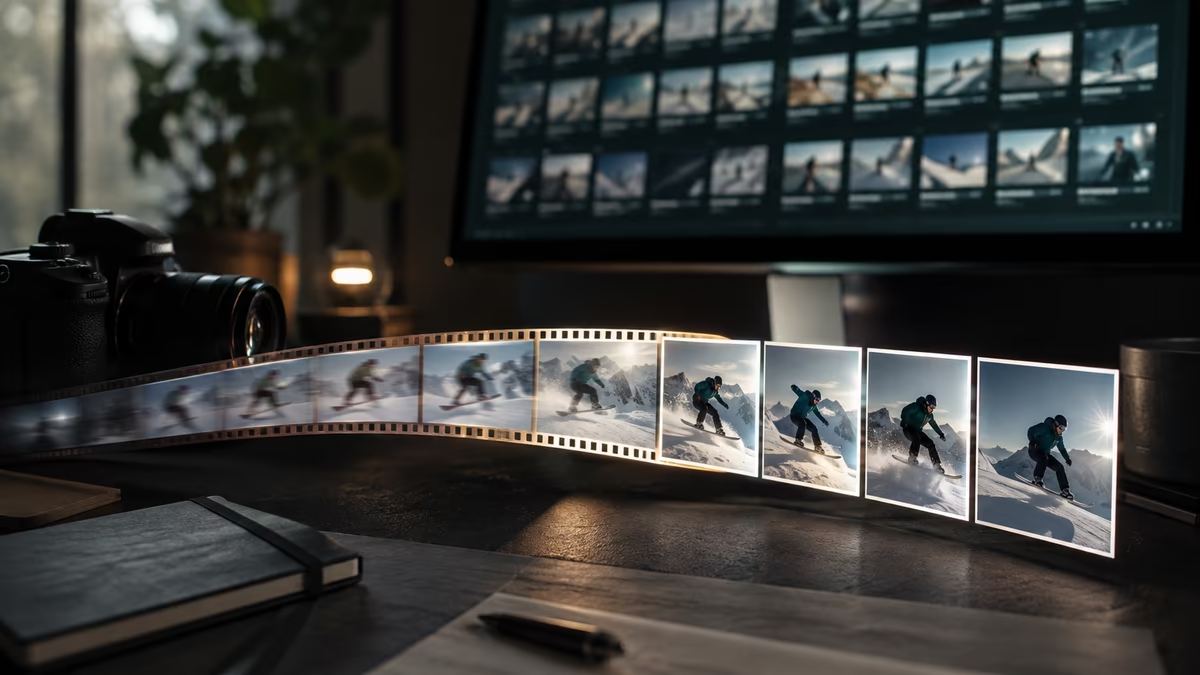
A video clip is a stack of still frames played back fast. Each of those frames is a usable photograph waiting to be pulled out. Here are the most common reasons people reach for a video-to-JPG converter:
- Thumbnails and cover art — grab the most expressive moment for YouTube, a blog hero, or a social post.
- Product photography — a slow product spin video becomes a tidy set of gallery images.
- Print and design assets — capture a sharp, high-resolution still for posters or slide decks.
- Reference and analysis — pull a frame to study motion, form, or composition.
Pro tip: always export at the video's native resolution. Upscaling a small frame afterward will never look as crisp as grabbing the original pixels directly.
Why JPG specifically?
JPG (or JPEG) has been the workhorse format for photographs for thirty years, and for video stills it is almost always the right call. Here is how it stacks up against the usual alternatives:
| Format | Best for | File size | Transparency |
|---|---|---|---|
| JPG | Photos, thumbnails, web sharing | Small | No |
| PNG | Text, UI, logos, graphics | Larger | Yes |
| WebP | Modern web, smaller than both | Smallest | Yes |
| GIF | Short animations | Medium | Yes |
As a rule of thumb, choose JPG for natural video footage — it compresses gradients and skin tones efficiently, so a frame from a 1080p clip ends up a few hundred kilobytes instead of megabytes. Reach for PNG only when the frame contains sharp text, a UI screenshot, or a logo where compression artifacts would be visible, and avoid converting to GIF unless you need animation — for a single still, JPG is smaller and better quality.
Three ways to convert a video to JPG
The right method depends on how many images you need.
1. Convert a single frame
The most common case. Scrub the timeline to the exact moment and export one JPG. It is ideal for thumbnails and hero shots where you want full control over composition and timing.
2. Convert frames at an interval
Need a storyboard or contact sheet? Export one JPG every second, every 5 seconds, or any custom interval. This is perfect for summarizing long clips and for creating stop-motion style previews.
3. Convert every frame
For motion analysis or building a dataset you may want all frames as JPG. Keep in mind a 30 fps, one-minute clip produces roughly 1,800 images — plan your storage accordingly.
Step-by-step: convert video to JPG in your browser
You can do all of this with the free converter on this site. Work through this checklist for a clean export:
- Open the converter and drop in your clip (MP4, WebM, MOV, AVI, MKV, and more are supported).
- Scrub the timeline to the moment you want to capture.
- Choose JPG as the output format.
- Optionally set a quality level — around 90% is visually lossless for most footage.
- Click Capture frame and download the image.
- Repeat for additional frames, or switch to interval mode for a batch.
Because everything runs locally with the browser's built-in video engine, your footage never leaves your device. That keeps the process private and fast — a 4K clip is decoded as quickly as your own computer can manage.
A quick command-line alternative
If you prefer scripting and have FFmpeg installed, the equivalent of "one JPG every second" looks like this:
# Extract one JPG per second from input.mp4
ffmpeg -i input.mp4 -vf fps=1 frame_%04d.jpg
The -vf fps=1 flag sets one frame per second; bump it to fps=1/5 for one every five seconds. This is great for batch jobs, but for a single frame or a few thumbnails the in-browser converter is faster because there is nothing to install or configure.
Getting the best quality out of your JPGs
A few small habits make a big difference to the final image:
- Capture at native resolution. A 1080p source yields a 1920×1080 JPG; a 4K source yields 3840×2160. Don't downscale before you export.
- Mind the quality setting. Anything from ~85–95% is visually indistinguishable from the source for most footage, while shaving the file size dramatically.
- Pick the sharpest frame. A frame with crisp focus beats a slightly blurred one every time — even if the blurred moment is more dramatic.
- Watch for fade-ins. Many clips open with a fade from black. Scrub a second or two past the opening so you don't export a near-black JPG.
Pro tip: if you need a specific output size for a banner, capture at full resolution first, then resize a copy. Never resize the only original you have.
Common pitfalls and how to avoid them
- Black or frozen frames at the start. Skip the first second or two of any clip with a fade-in.
- Wrong aspect ratio. Decide your target ratio (16:9, 1:1, 9:16) before you crop, so you frame the shot correctly from the start.
- Bloated exports. If a frame is a photo, JPG at ~90% quality will look identical to a PNG at a fraction of the size.
- Over-bright highlights. Video can hold detail in bright areas that JPG clips to pure white; if a frame looks blown out, pick a fractionally earlier moment.
Frequently asked questions
Is it really free with no watermark? Yes. The tool runs entirely in your browser, so there is no server cost to pass on and no watermark layered over your image.
Will my video be uploaded? No. Frames are decoded on your device. Nothing is sent anywhere, which also makes it fast — large files process as quickly as your computer allows.
What formats can I convert from? Most common containers work: MP4, WebM, MOV, AVI, MKV, and others. The browser decodes whatever codecs it supports natively.
Can I batch convert multiple videos? Yes. Drop in several clips and export JPGs from each without re-configuring or re-uploading.
Wrapping up
Knowing how to convert video to JPG gives you an endless supply of high-quality stills from footage you already own. Start with a single frame to nail your thumbnail, graduate to interval mode for storyboards, and reach for full extraction only when a project truly demands it. Open the converter, drop in a clip, and save your first JPG in seconds — the whole workflow stays private on your machine.
by Video to Image