How to Create Product Photos From Video Footage
Learn how to create product photos from video footage for your e-commerce store — capture sharp JPG frames, spin sets, and detail shots in your browser. Free, private, no watermark.
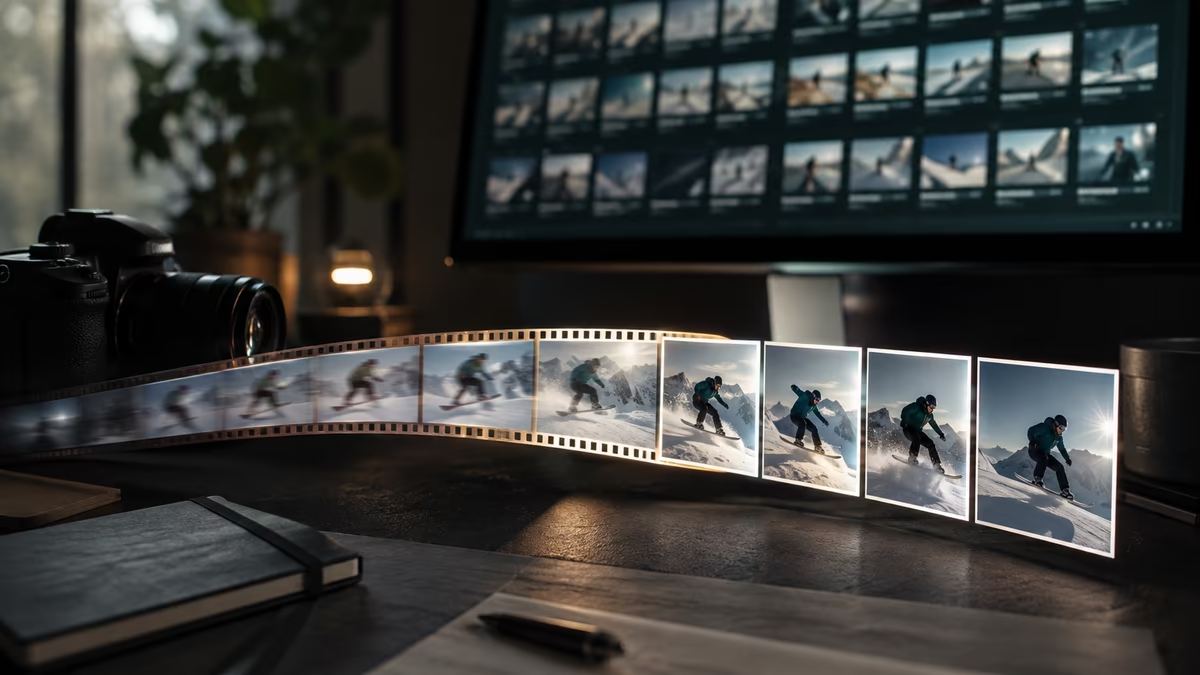
Professional product photography usually means a studio, lighting kit, turntable, and a stack of post-processing — a real investment for a small catalog. But if you already have decent footage of your product (a slow spin on a plain backdrop, a handheld detail pass, even a clip shot on a phone under soft window light), you're most of the way there. This guide shows you how to create product photos from video quickly, cheaply, and entirely in your browser, with no upload and no watermark.
Why shoot video instead of stills for products?
It sounds backwards, but video-first capture has real advantages for e-commerce catalogs:
- You pick the perfect frame later. A 30-second clip contains hundreds of candidates. You can choose the sharpest, best-lit, best-composed moment in post rather than committing in the moment.
- One shoot, many outputs. A single spin video yields a main hero shot, gallery thumbnails, a 360-style rotation set, and a short looping GIF — all from the same footage.
- Better hit rate for small teams. Without a studio, getting one clean still can take many tries. Video gives you a continuous stream of near-misses to harvest from.
- Future-proofs the listing. Platforms increasingly favor motion; with video in hand you can ship both stills and a clip without a second shoot.
Pro tip: shoot in the highest resolution your camera supports. A 4K video frame is roughly 8 megapixels — plenty for a web storefront. A 1080p frame (~2 MP) is fine for thumbnails and galleries but won't survive heavy cropping.
What makes a good product frame?
Before extraction, it helps to know what you're aiming for. The same rules that govern studio product photography apply to frames pulled from video:
- Sharp focus on the product. Motion blur reads as a defect in a still, even when it looks fine in motion. Favour frames where the camera or subject was relatively still.
- Clean backdrop. A plain wall, sweep, or poster board keeps the eye on the product and makes later background removal trivial.
- Even, soft lighting. Diffused window light or a couple of soft sources reduce harsh shadows that hide product detail.
- Consistent framing across the set. Decide your aspect ratio (1:1 for marketplaces, 4:3 or 16:9 for hero shots) before you extract, so the gallery feels cohesive.
- No hands, logos, or clutter in frame unless they're intentional. Background noise is much harder to remove after the fact.
Shooting the source video
You don't need fancy gear. A phone on a tripod under soft light will outperform a DSLR handheld in mixed lighting. Work through this checklist before you hit record:
- Clean the product and the backdrop — dust shows up sharply in stills.
- Lock focus and exposure on the product so neither drifts mid-clip.
- Use a tripod, or rest the camera on a stable surface.
- Record a slow, steady rotation (one full turn over ~15–20 seconds).
- Add a second clip for details: close-ups of texture, labels, and closures.
- Leave a few seconds of stillness at the start and end for clean hero frames.
A slow spin is the most versatile single clip. It gives you a hero frame from any angle, plus the raw material for a 360-degree rotation set or GIF.
Choosing the right output format
| Output | Best for | File size | Notes |
|---|---|---|---|
| JPG | Storefronts, galleries, thumbnails | Small | Ideal for natural product footage |
| PNG | Products with text, logos, or sharp edges | Larger | Lossless; use when quality matters most |
| WebP | Modern storefronts | Smallest | Transparency support, smaller than JPG |
| GIF | Short spin previews, social loops | Medium | Keep under ~5 seconds for sane size |
Pro tip: for a product with sharp printed text or fine detail, export PNG masters and derive compressed JPG copies from those. You keep a lossless original and ship small files.
Step-by-step: extract product photos in your browser
The converter on this site handles the whole workflow locally. Here's the recipe for a clean catalog set from one spin video:
- Drop in your clip — MP4, WebM, MOV, AVI, MKV, and more are all supported.
- Scrub to the hero moment — find the angle that best shows the product's face and branding.
- Capture a single JPG at full resolution — this becomes your main listing image.
- Switch to interval mode — one frame every 1–2 seconds across the spin yields a tidy gallery.
- Export the set as JPG (or PNG for text-heavy packaging).
- Optional: export a short GIF from a 2–3 second slice for a looping preview.
Because everything decodes in the browser, your product footage never leaves your device — important for unreleased SKUs, client work under NDA, or anything you don't want on a third-party server. Upload your unreleased product to a random converter — that's a step you can safely skip.
Building a 360-style spin set
A genuine 360-spin viewer usually needs 24–36 frames evenly spaced around the turn. You can approximate that from a spin video without any special software:
Spin set recipe
1. Clip length: ~18 seconds of one full rotation
2. Interval mode: one frame every 0.5 seconds
3. Output: ~36 JPGs at full resolution
4. Name in order (frame_0001.jpg ... frame_0036.jpg)
5. Load into any 360 viewer that accepts an image sequence
The key is a steady rotation speed. If your spin speeds up and slows down, the frames won't be evenly spaced and the final spin will look jerky. Practice the turn once or twice before recording — a smooth, constant rotation is worth more than any post-processing.
Common pitfalls (and fixes)
- Motion blur on extracted frames. Camera or subject movement during the frame produces blur that's invisible in video but obvious in a still. Solution: slow down, use more light (so the shutter speed rises), and pick frames at the moments of least motion.
- Mixed color temperature. Window light plus warm indoor bulbs produce odd color casts. Pick one light source, or white-balance manually before recording.
- Inconsistent aspect ratio across the gallery. Decide your target ratio up front and frame for it. Cropping a 16:9 frame down to 1:1 after the fact often chops off the product.
- Over-compressed source video. Heavily compressed MP4s show blocking in extracted stills, especially in smooth gradients. If the source looks blocky paused, the frames will too — re-shoot or export at a higher bitrate.
- Too many near-identical frames. Interval mode at one frame per second on a slow spin can yield duplicates. Either widen the interval or curate the set down to distinct angles.
A workflow that scales
Once you've nailed the process on one product, it generalizes to a whole catalog. A repeatable per-SKU workflow looks like:
- Shoot a ~20-second spin plus a ~10-second detail clip.
- Extract one hero JPG, a 6–8 frame gallery, and an optional 3-second GIF.
- Rename consistently (
SKU_hero.jpg,SKU_01.jpg, …) and file under the product folder. - Keep the source video alongside the images — it's your master if you ever need to re-extract.
For a store with dozens of SKUs, this pipeline turns what would be a multi-day studio booking into an afternoon of in-browser extraction.
Frequently asked questions
Is the quality good enough for a real store? Yes, if your source is at least 1080p and well-lit. 4K footage yields frames sharp enough for large hero images. The extracted frame matches the video's native resolution.
Is it really free with no watermark? Correct. The tool runs entirely in your browser, so there's no server cost to pass on and no watermark layered over your images.
Will my product footage be uploaded? No. Frames are decoded on your device. Nothing is sent anywhere, which matters for unreleased products and NDA-bound work.
Can I batch extract from multiple product clips? Yes. Drop in several clips and export a gallery from each without re-configuring.
Can I make a GIF spin for social? Yes. Capture a short slice as a sequence and assemble it into a looping GIF, all locally.
Wrapping up
Learning how to create product photos from video turns footage you may already have into a clean, cohesive catalog — hero shots, gallery sets, 360 spins, and social GIFs, all from a single shoot. Shoot slow and steady under soft light, pick PNG masters when detail matters and JPG for delivery, and let the in-browser converter handle extraction privately on your machine. Drop in your next product clip, capture the hero frame, and build out the gallery from there — no studio, no upload, no watermark.
by Video to Image