How to Extract Frames From a Video (Free, In-Browser Guide)
Learn how to extract frames from a video as JPG or PNG images — pick a single perfect still, grab an interval of frames, or export every frame. Fully free and private, no upload required.
Whether you need a single thumbnail, a series of product photos, or every frame for analysis, learning how to extract frames from a video is one of the most practical media skills you can pick up. This guide walks through three common workflows, compares the output formats, and shows you how to do it entirely in your browser — no software install, no upload, no watermark.
Why extract frames from a video?
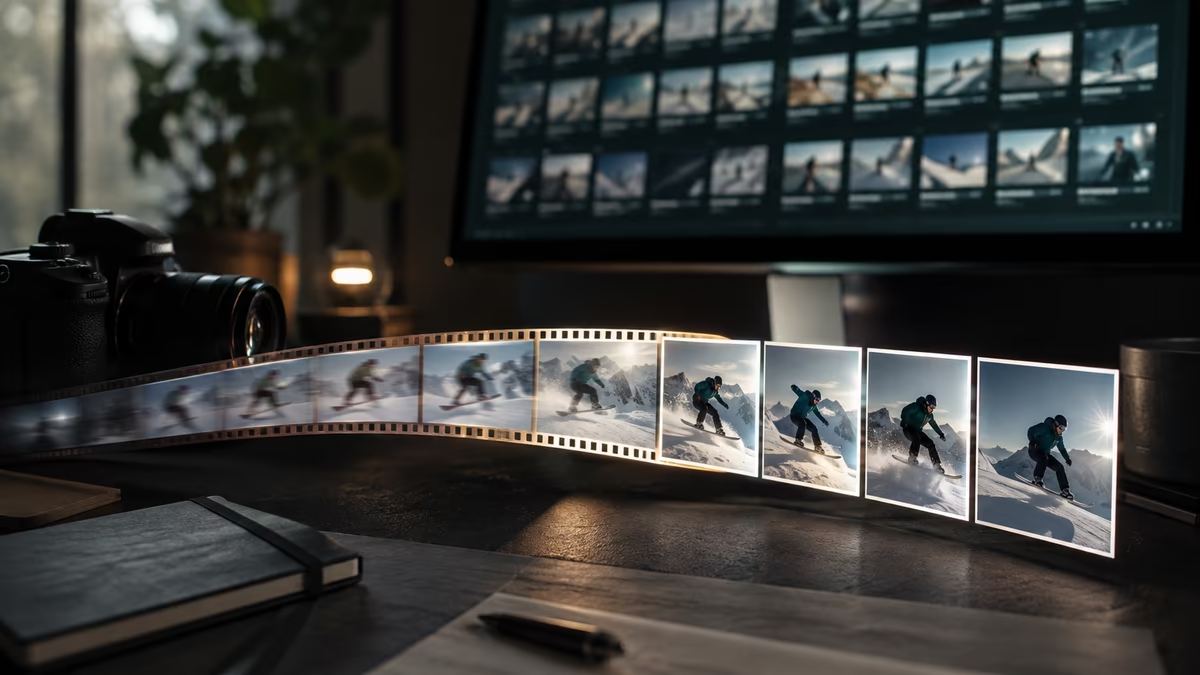
A video is just a sequence of still images played quickly. Pulling individual frames back out unlocks a surprising number of use cases:
- Thumbnails and cover art — grab the most expressive moment for YouTube, a blog hero, or a social post.
- E-commerce product photos — turn a slow product spin video into a tidy set of gallery images.
- Print and design — capture a sharp, high-resolution still for posters or slides.
- Debugging and analysis — inspect motion, confirm focus, or count occurrences frame by frame.
Pro tip: always extract at the video's native resolution. Upscaling a low-resolution frame later will never look as crisp as grabbing the original pixels.
Three ways to extract frames
The right method depends on how many frames you need.
1. Extract a single perfect frame
This is the most common case. You scrub to the exact moment and export one image. It's ideal for thumbnails and hero shots where you want full control over composition.
2. Extract frames at an interval
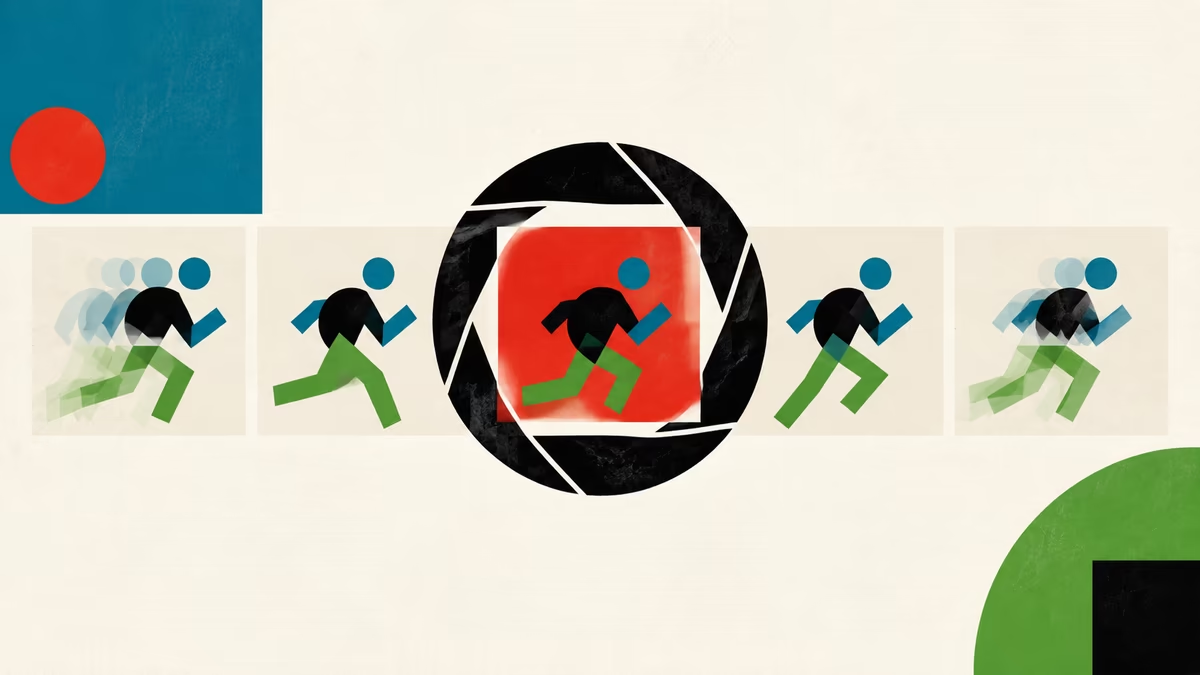
Need a storyboard or a contact sheet? Export one frame every second, every 5 seconds, or any custom interval. This is great for summarizing long clips and for creating stop-motion style previews.
3. Extract every frame
For motion analysis, machine-learning datasets, or GIF assembly, you may want all frames. Be aware that a 30 fps, one-minute clip produces ~1,800 images — plan your storage accordingly.
JPG vs PNG: which format should you choose?
| Format | Best for | File size | Transparency |
|---|---|---|---|
| JPG | Photos, thumbnails, web sharing | Small | No |
| PNG | Screenshots, text, graphics, logos | Larger | Yes |
| WebP | Modern web, smaller than both | Smallest | Yes |
As a rule of thumb: choose JPG for natural video footage (it compresses gradients and skin tones efficiently), and PNG when the frame contains sharp text, UI, or a logo where compression artifacts would be visible.
Step-by-step: extract frames in your browser
You can do all of this with the free converter on this site. Here is the checklist for a clean export:
- Open the converter and drop in your clip (MP4, WebM, MOV, and more are supported).
- Scrub the timeline to the moment you want to capture.
- Pick your output format — JPG or PNG.
- Click Capture frame and download the image.
- Repeat for additional frames, or switch to interval mode for a batch.
Because everything runs locally with the browser's built-in video engine, your footage never leaves your device. Upload your sensitive footage to a random server — that's a step you can safely skip.
A note on quality
If your source is 1080p or 4K, the extracted frame matches that resolution. If you need a specific size for a banner or thumbnail, capture at full resolution first and resize the copy — never resize the only original you have.
Choosing the right frame
Picking the single best frame from thousands is an art. Keep these principles in mind:
- Eyes and focus — for people, a frame with sharp eyes almost always wins.
- Motion — a tiny bit of motion blur reads as energy; too much reads as a mistake.
- Negative space — leave room for text overlays if the image will carry a headline.
- Lighting — favor frames shot in soft, even light over high-contrast moments.
Common pitfalls and how to avoid them
- Black or frozen frames at the start. Many clips begin with a fade-in. Scrub a second or two past the opening.
- Wrong aspect ratio. Decide your target ratio (16:9, 1:1, 9:16) before you crop, so you frame the shot correctly.
- Bloated PNG exports. A 4K PNG can be 15 MB+. If it's a photo, a JPG at ~90% quality will look identical at a fraction of the size.
Frequently asked questions
Is it really free with no watermark? Yes. The tool runs entirely in your browser, so there is no server cost to pass on and no watermark layered over your image.
Will my video be uploaded? No. Frames are decoded on your device. Nothing is sent anywhere, which also makes it fast — large files process as quickly as your computer allows.
Can I batch extract from multiple videos? Yes. Drop in several clips and export frames from each without re-uploading or re-configuring.
Wrapping up
Knowing how to extract frames from a video gives you a steady supply of high-quality stills from footage you already own. Start with a single frame to nail your thumbnail, graduate to interval mode for storyboards, and reach for full extraction only when a project truly demands it. Open the converter, drop in a clip, and grab your first frame in seconds — the whole workflow stays private on your machine.
by Video to Image